
The Friendly Planter garden planner lets you draw your garden beds and place plants in them at the right spacing, so you can see what fits before you plant. It's free, there's no account to make, and it works on phones, tablets and computers.
Tip: Rather learn by doing? Take the tour: tap the ? button in the planner's toolbar and choose Take the tour. It walks you through making a bed and placing plants in about 2 minutes.
The planner at a glance
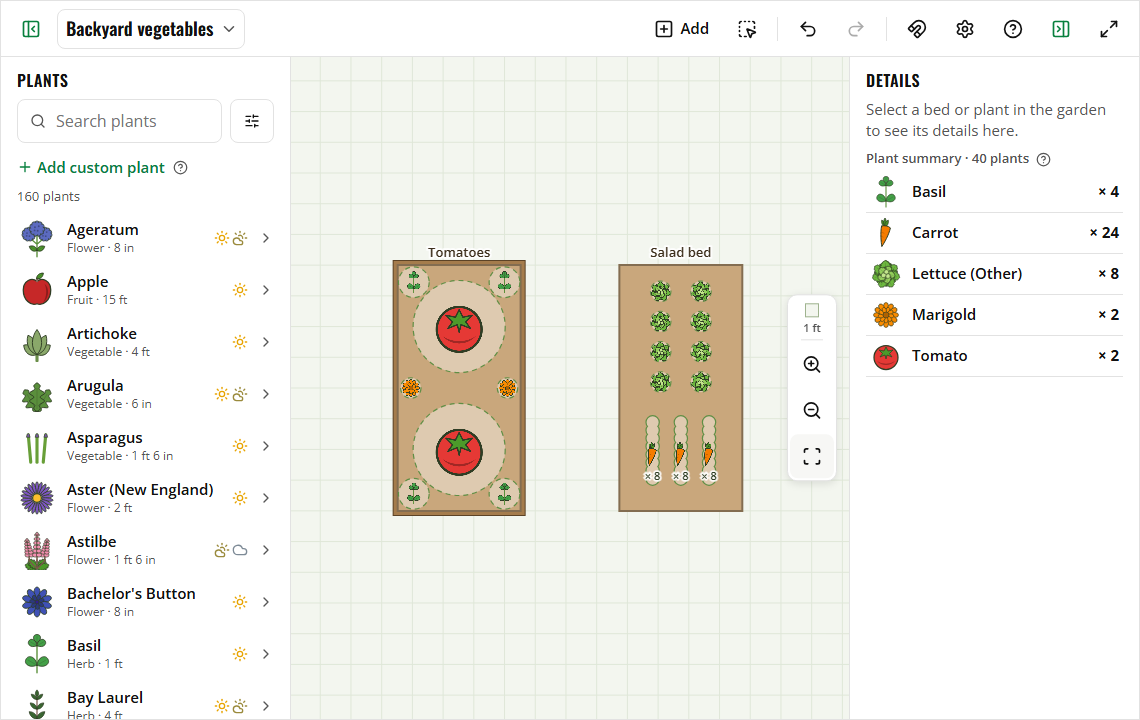
- Toolbar (across the top): the garden's name (tap it for the garden menu: saving, sharing, printing and your other gardens), Add for beds and obstacles, undo and redo, snapping, settings and full screen.
- Plants (left side on a computer): every plant you can place, with search and filters.
- The garden (middle): your beds and plants on a grid. Each grid square is 1 ft (30 cm in meters).
- Details (right side on a computer): whatever you've selected (a bed, a plant, a group), with its sizes and settings. With nothing selected, it shows a count of every plant in the garden.
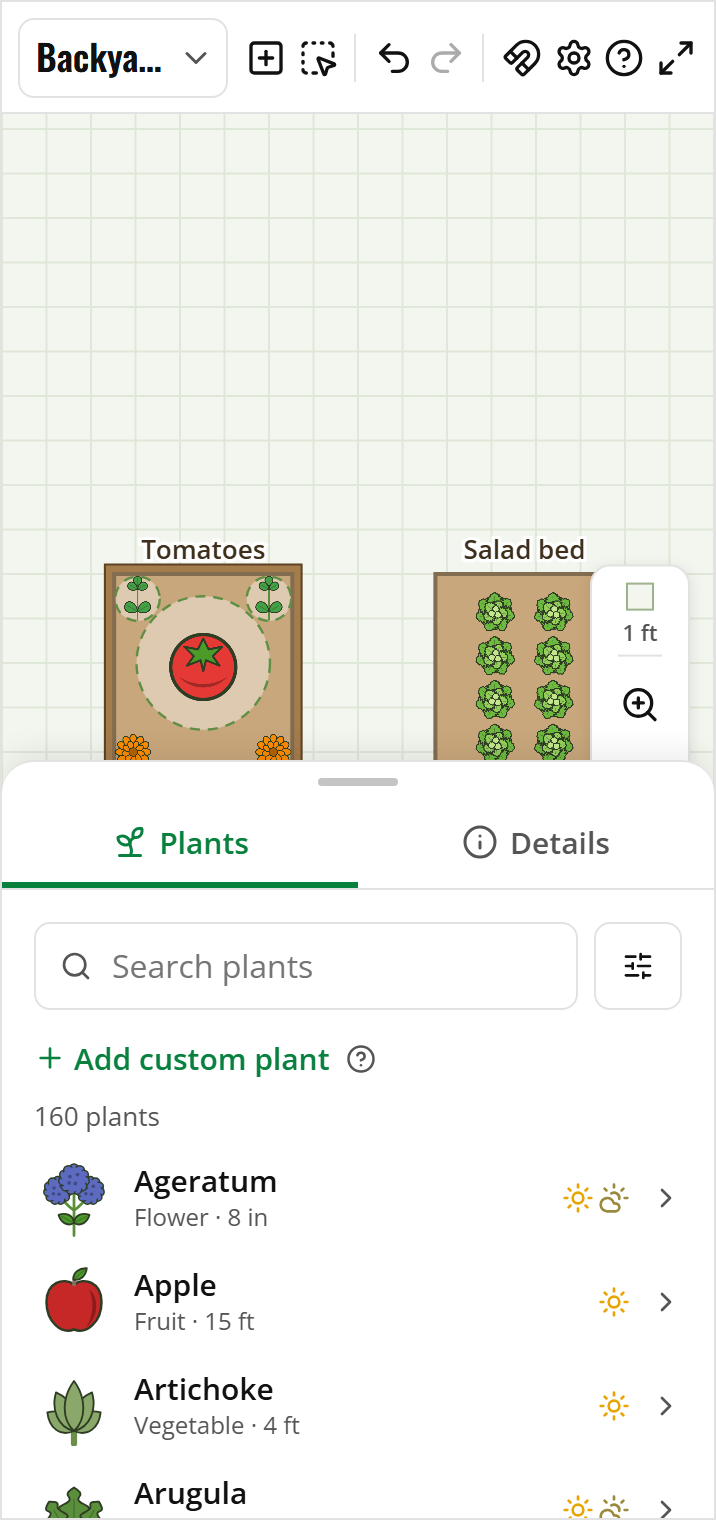
On a phone, the garden fills the screen and Plants and Details are tabs in a panel that slides up from the bottom.
1. Add a bed
Tap Add, pick a bed shape, then tap the garden where it should go. Beds start at a typical size (a rectangle is 4 × 8 ft). Drag the bed to move it, drag its handles to resize or turn it, or type exact sizes in its details. More in Beds and obstacles.
2. Place plants
Find a plant in the Plants list (search by name, or use the filters), tap it to see its details, then tap Place in garden and tap a bed. On a computer you can also drag a plant from the list straight onto a bed.
Each plant sits in a light circle that shows the room it needs. If circles overlap, the plants are too close. To plant a whole row or block at once, use Place multiple. More in Placing plants.
3. Keep your garden
The planner saves your garden in your browser as you work, so it's there when you come back on the same device and browser. Browsers can clear that, so export a copy from the garden menu now and then. More in Saving, files and share links.
Getting around
- Zoom: pinch on a phone or tablet, or scroll with a mouse. The + and − buttons in the corner work too, and Zoom to fit shows the whole garden.
- Pan: drag an empty spot of the garden.
- Undo and Redo are in the toolbar (or Ctrl+Z and Ctrl+Y; ⌘ on a Mac).
- Full screen (the last toolbar button) hides the rest of the page while you work. Handy on a phone.
- Help: tap a small ? next to a setting for a quick explanation, or the ? button in the toolbar for these help pages.
Tip: Planning a square-foot garden? Start one from New garden in the garden menu and pick Square-foot garden. See Square-foot gardens.
