
There's no account: your gardens stay on your device. Here's how to keep them safe and take them with you.
Saved as you go
The planner saves your garden in your browser as you work. When you come back on the same device and browser, it's there.
That saved copy is temporary. Browsers can clear it: clearing browsing data deletes it, private or incognito windows don't keep it, and Safari deletes it if you don't visit the site for 7 days. It also isn't on your other devices or browsers.
Export a copy to keep it safe
Open the garden menu (tap the garden's name in the toolbar) and tap Export garden file. This downloads a small file named with the garden's name and the date. Keep it somewhere safe, like your computer's documents or cloud storage.
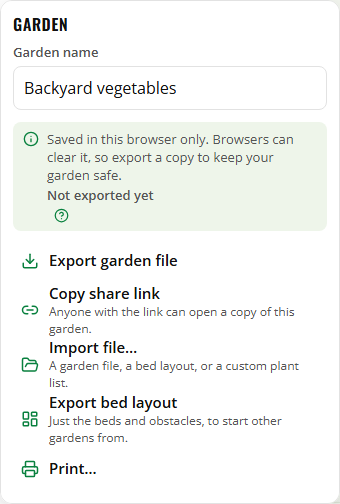
The garden menu shows when you last exported. If the garden has changed and it's been a week, the planner reminds you; Later hides the reminder for a day.
On a phone or tablet, Share garden file… sends the file to your share menu instead: save it to Files, Google Drive or iCloud Drive, email it to yourself, or send it in a message.
Opening a garden file
Tap Import file… in the garden menu and pick the file. It opens as a garden in My gardens.
- If that garden is already saved here and hasn't changed, it just opens.
- If the saved one is different, you're asked whether to Replace it with the file (you can undo right after) or Keep both.
- Anything else is added as a new garden. Nothing is overwritten.
Import file… also opens bed layouts and custom plant lists (below).
Your gardens
My gardens, in the garden menu, lists every garden saved in this browser. Open one, duplicate it, or delete it. New garden starts another; the one you had open stays saved. Change the garden's name under Garden name.
Moving a garden to another device
Export the garden file (or share it to yourself), then open the planner on the other device and Import file… it. Or send yourself a share link.
Share links
Copy share link (on a computer) or Share link… (on a phone or tablet) makes a link with the whole garden inside it. Anyone who opens it gets their own copy of the garden; changes they make don't affect yours. The garden is stored in the link itself, not on the website.
Very big gardens don't fit in a link. The planner tells you, and you can share the garden file instead.
Bed layouts
Export bed layout saves just the beds and obstacles, without plants. Import it to start a new garden with the same beds, for example next season's plan.
Custom plants
Export custom plants saves the custom plants you've made in this garden. Import the file into another garden to use them there.
